
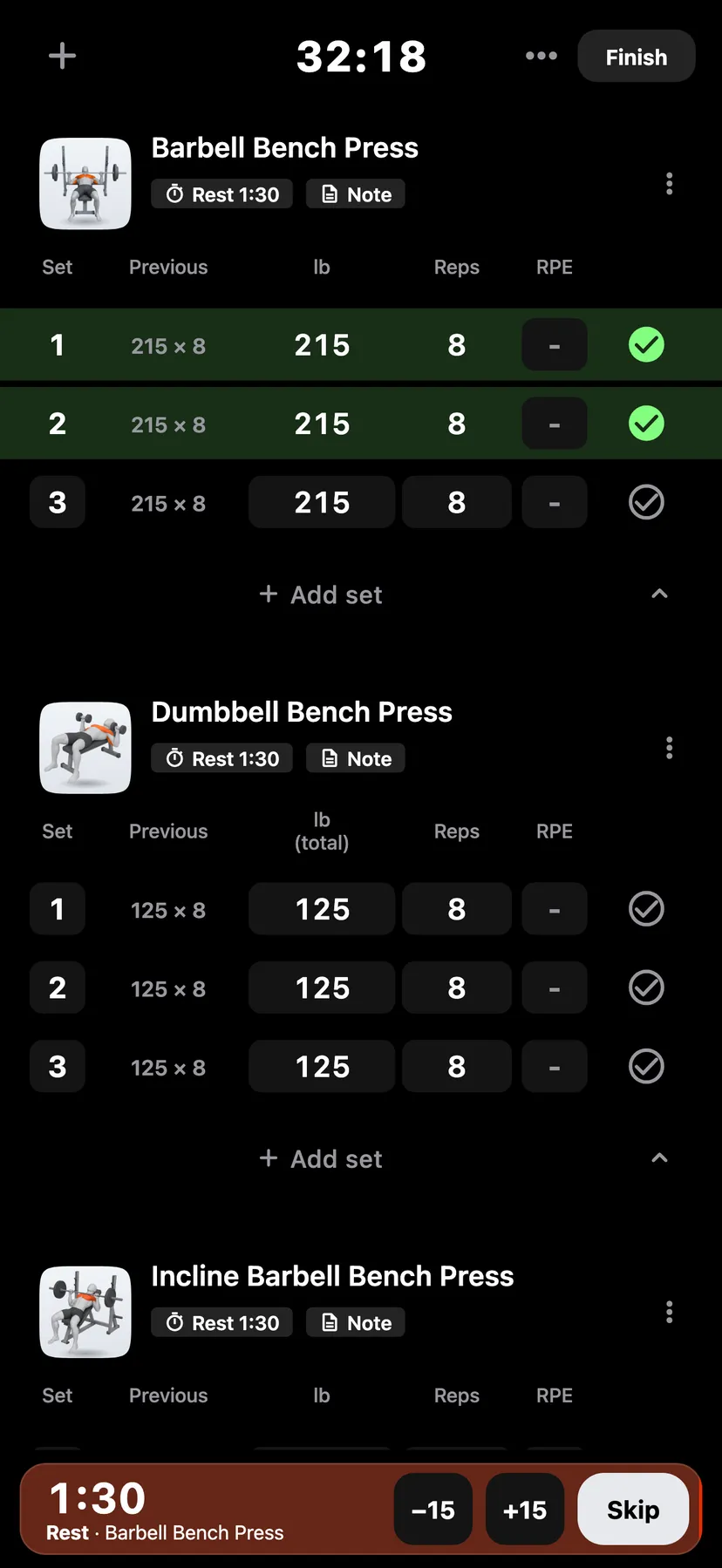
Example data
Supersets
A superset links two or more exercises that you do in turn. With the keypad open, ticking a set moves the keypad to the exercise that follows in the superset.
WhereTrainthena workoutthenan exercise's ⋯ menu
- 1
Tap the ⋯ button on an exercise in the workout, then tap Superset with.
- 2
Pick the other exercises
Select one or more of the workout's other exercises and tap Group. The exercises move together in the list and each shows a Superset tag.
- 3
Enter a set and tick it. The keypad moves to the set of the exercise that follows in the superset.
- 4
Take an exercise out
Open the exercise's ⋯ menu and tap Remove from superset.
Details
- When you add exercises, select two or more and tap Superset. The add button then adds them as one superset.
- A superset's exercises always sit together. Dragging an exercise between two of them asks "Add to superset?", and dragging one out asks "Remove from superset?".
- A superset left with one exercise stops being a superset.
- Each exercise in a superset keeps its own rest.
- A routine keeps its supersets, and a workout started from the routine has them.
Related features
Checked against the app on November 13, 2026.