
Example data
Training Calendar
Training calendar shows one month of training days. Tap a day to see its workouts with each exercise's best set, or to log a workout on it.
WhereTrainthenTraining calendar
- 1
Tap the calendar button at the top of Train or Stats. The calendar opens on the month's newest day with a workout, or on today.
- 2
Tap the arrows to step one month, or tap the month's name to pick a month. The calendar goes back to the month of your first workout.
- 3
Tap a day up to today. A day with a workout is filled, and a green dot marks a day with a record. The day's workouts are listed under the month, and a day with none reads No workouts.
- 4
Each workout shows its name, length, sets and volume, then its exercises with their working sets and best set. PR marks an exercise where a set was a record.
- 5
Open a workout
Tap the workout's name to open its summary. Hold it to open Edit workout, Rename workout, Save as routine and Delete workout.
- 6
Tap Log workout under the day. On a day that already has a workout, tap Log another workout.
Settings
- Week starts
- Mon by default. On the You tab, open Training and set Week starts to Mon or Sun. The calendar's weeks start on that day.
Details
- Under the month's name, the calendar gives the month's workouts, total time and records.
- The best set is the heaviest working set, then the one with the most reps, then the longest hold.
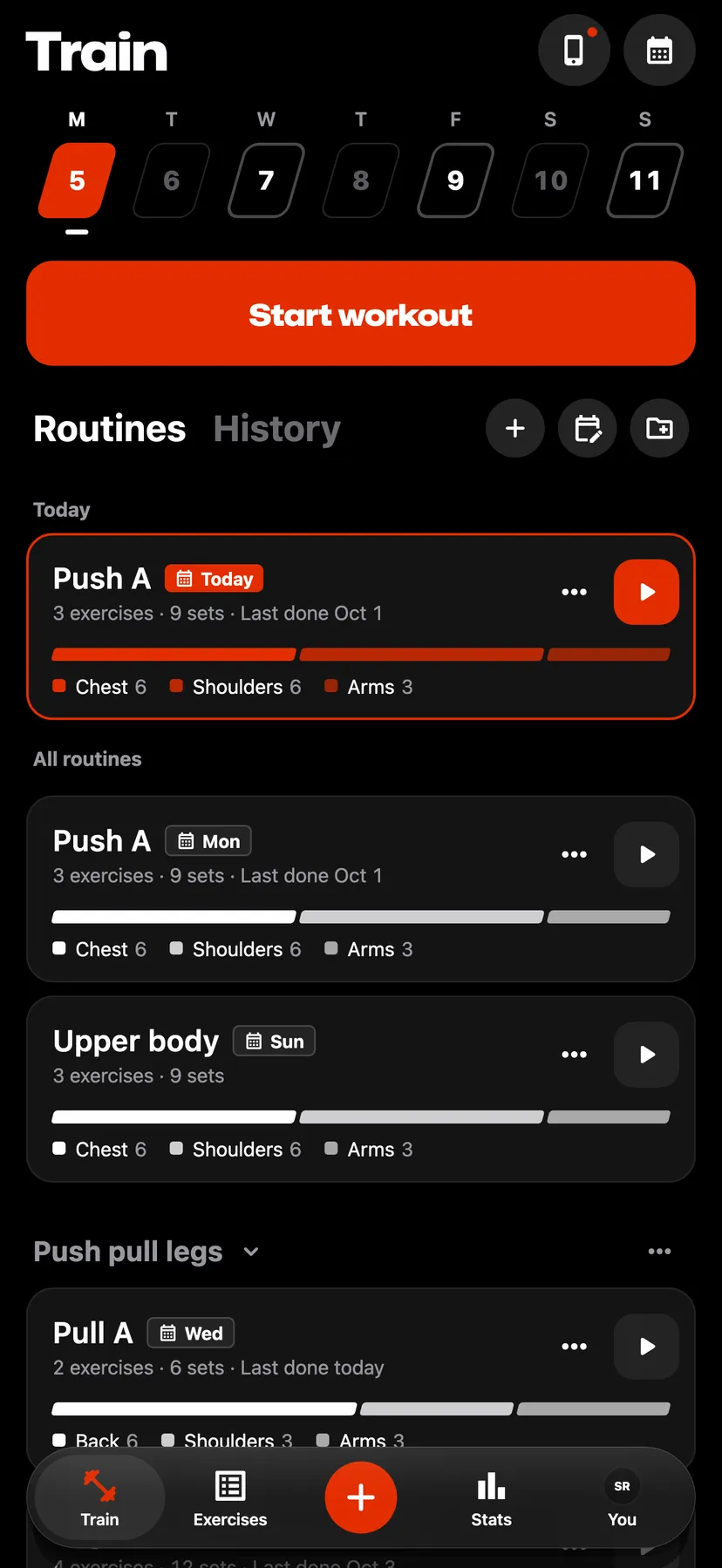
- A day up to today on Train's week strip opens the same list of that day's workouts in a sheet.
- A workout stays on the date it was done, including one logged in another time zone.
- Tapping a day on Days trained in Stats opens Training calendar on that day's month.
Related features
Checked against the app on November 13, 2026.