
Example data
Exercise Notes
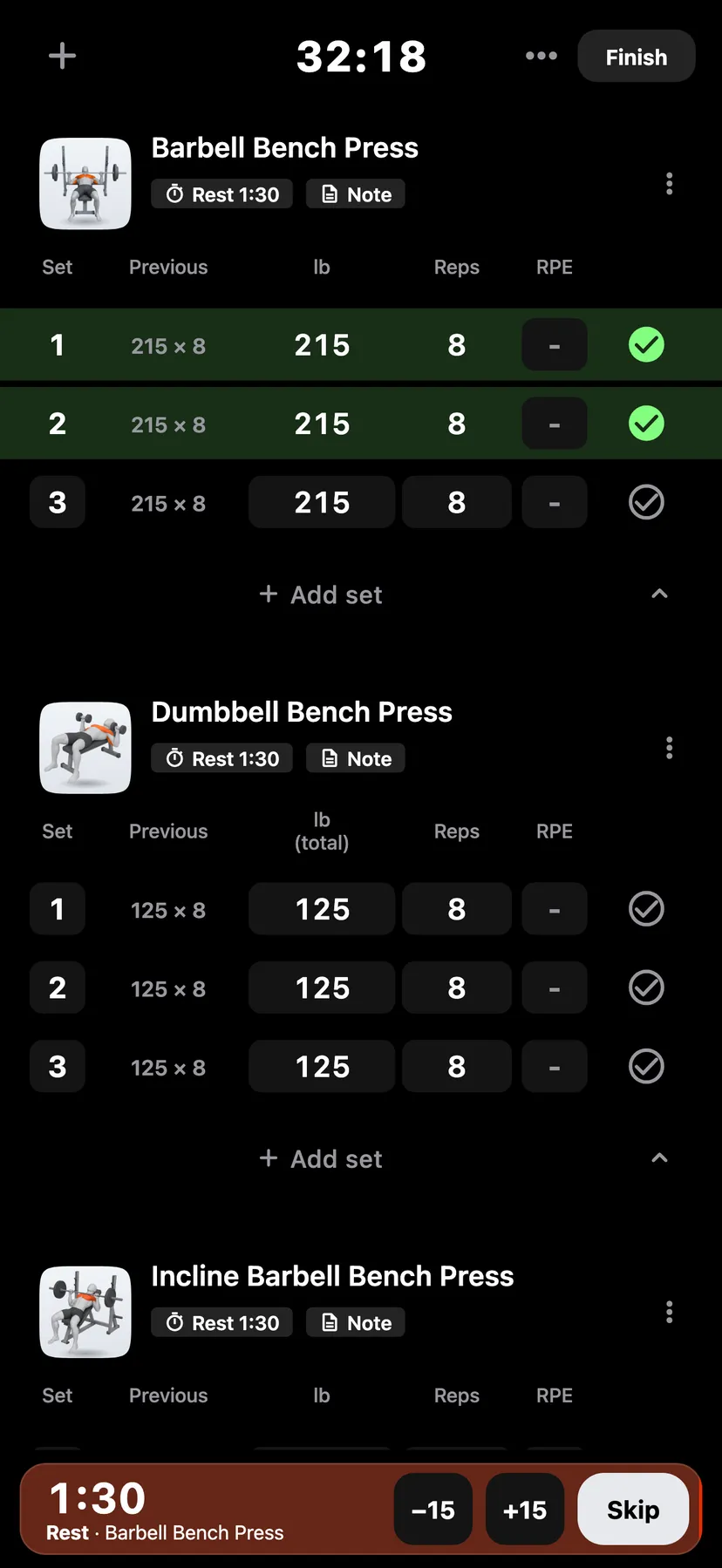
A note sits under an exercise's header in a workout. A pinned note shows every time you log that exercise.
WhereTrainthena workoutthenNote
- 1
Tap Note under the exercise's name and type. The note shows under the exercise's header.
- 2
Tap the icon at the start of the note and choose Pinned exercise note. The note then shows every time you log that exercise.
- 3
Pin a note to a routine
In a workout started from a routine, tap the note's icon and choose Pinned routine note. The note then shows every time you start that routine.
- 4
Delete a note
Tap the note's icon and choose Delete note.
- 5
Open the exercise's ⋯ menu and tap Hide notes. The chip under the exercise's name then reads Show notes.
Details
- A note you do not pin is a Workout note. It shows in that workout, then as Last note the following time you log the exercise. Tapping Last note opens the workout it came from.
- An exercise note holds up to 1,000 characters.
- Hide notes applies to that exercise on this iPhone.
- Each set can also have its own note of up to 500 characters: tap the set's number, then Note.
- Notes change no count, volume or record.
- On Apple Watch you can add a note to an exercise.
Related features
Checked against the app on November 13, 2026.