
Example data
Body Measurements
The Body page keeps a dated log of your bodyweight, body fat, lean mass and waist, chest, hip, arm and thigh measurements, and charts each one.
WhereStatsthenProgressthenBodyweight
- 1
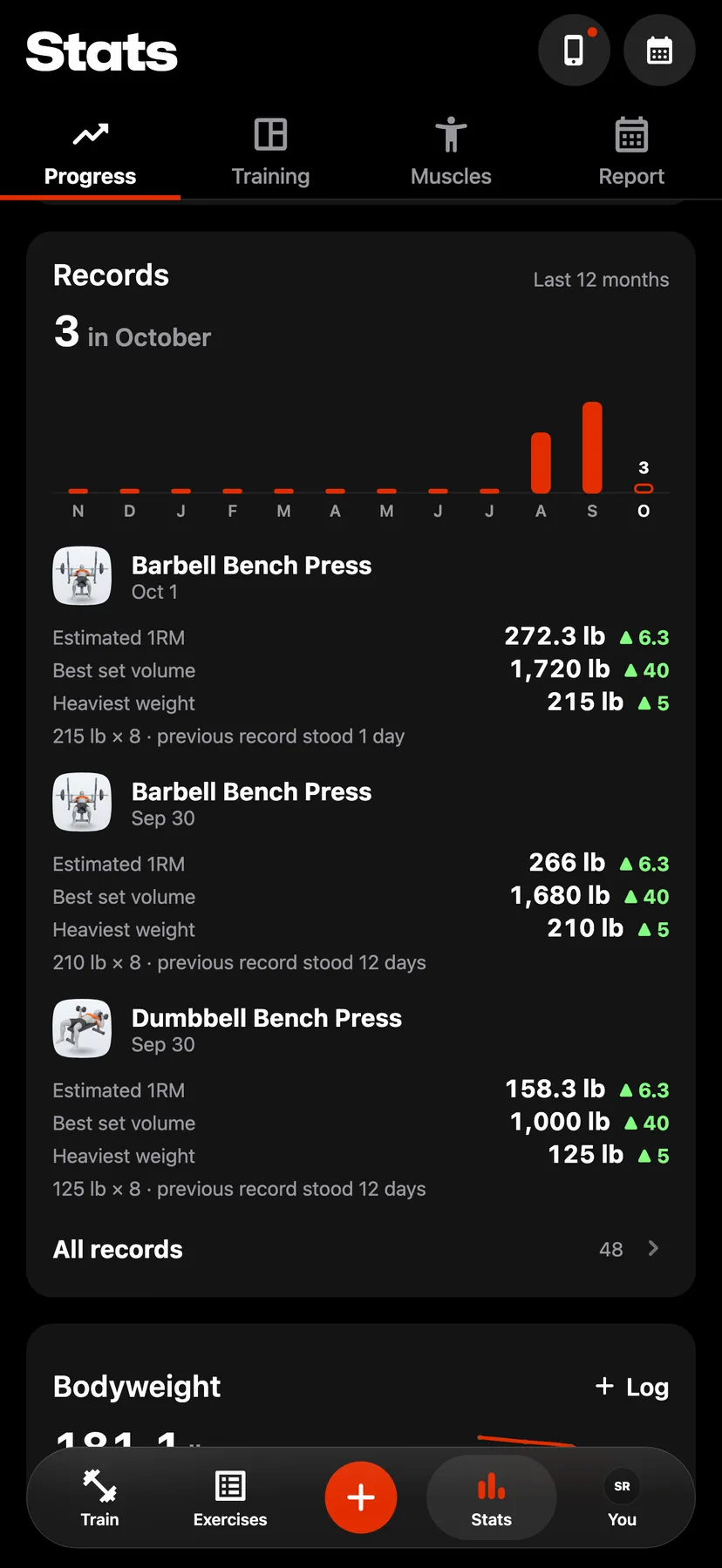
In Stats, on the Progress tab, scroll to Bodyweight and tap it.
- 2
Tap Log at the top of the Body page or on the Bodyweight card, or tap + in the dock and then Log weight. The weight is saved to today's entry.
- 3
Tap Log on the Measurements card. Fill in any of Weight, Body fat, Lean mass, Waist, Chest, Hips, L Arm, R Arm, L Thigh and R Thigh, then tap Save. The values are saved to today's entry.
- 4
Tap the chart's title to choose what it shows, or tap a row on the Measurements card. Choose 1M, 3M, 1Y or All under the chart.
- 5
Tap an entry under Entries. Change a value and tap Save, or tap Delete to remove the day's entry.
Settings
- Weight
- On the You tab, under Training, set Weight to lb or kg.
- Body measurements
- On the You tab, tap Other units under Training, then choose the unit for Body measurements.
- Weight from Apple Health
- On the You tab, tap Health, then turn on Weight under Read from Health. Repva copies each day's latest weigh-in from Apple Health.
Details
- An entry needs at least one measurement. A weight must be between 20 and 500 kg.
- The weight chart shows the 7-day average, with each weigh-in as a dot. Other measurements chart each entry.
- The Bodyweight card on the Progress tab shows the 7-day average and its change in 30 days.
- Each entry with a weight reads Logged or Apple Health.
- A day that already has a weight keeps it when Apple Health has one for the same day.
Related features
Checked against the app on November 13, 2026.