
Example data
Routine History
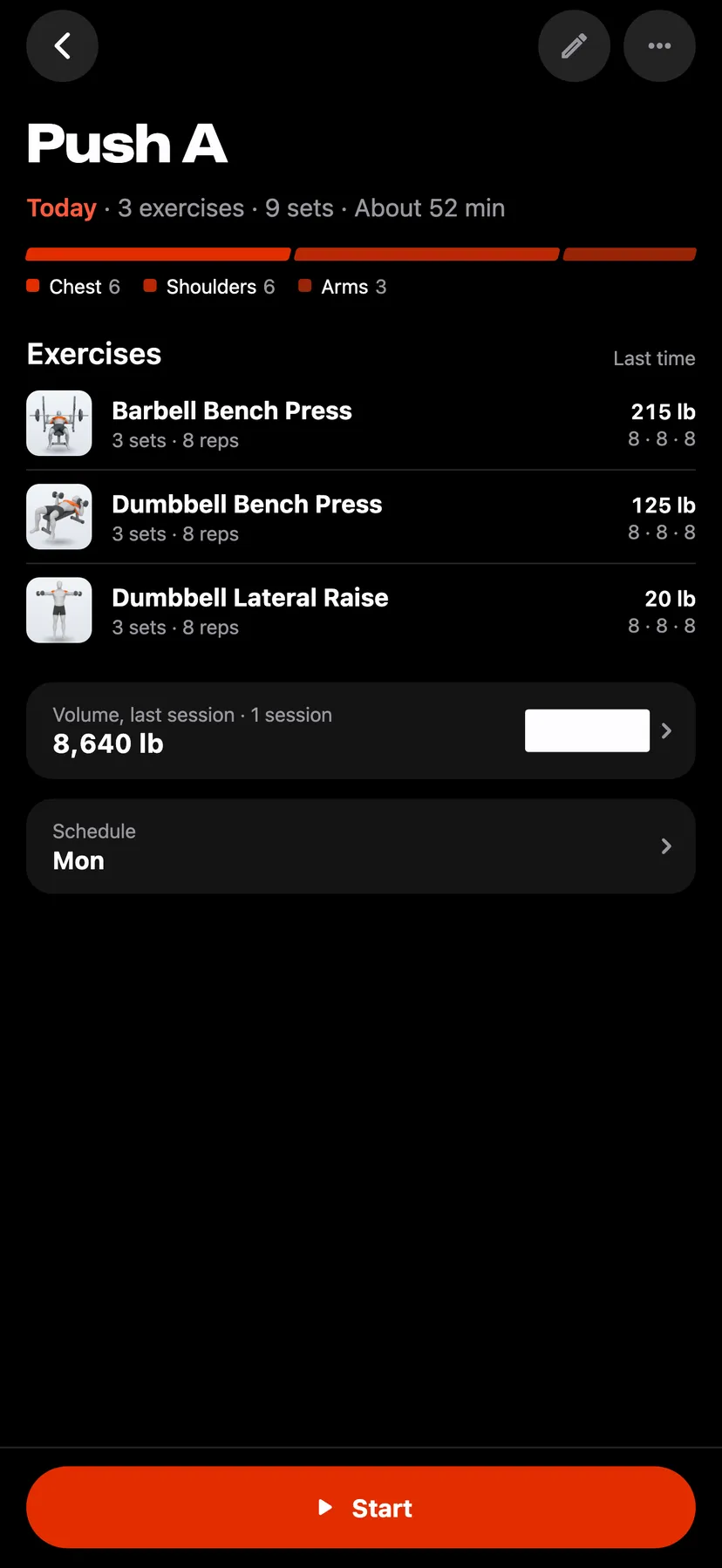
A routine's page lists its exercises with what you did the last time, charts every workout you started from it by volume, reps or duration, and shows the muscles its plan works.
WhereTrainthenRoutinesthenProgress
- 1
On Train, tap a routine's card. The line under the routine's name gives its schedule, its exercise and set counts and its usual length.
- 2
Exercises lists each exercise with its planned sets. Last time gives the heaviest load and each set's reps from the last workout that had the exercise, or a dash when it has none. Tap an exercise to open its page.
- 3
Under the exercises, one line gives the last session's figure, the number of sessions and the last 8 sessions as bars. Tap it to open Progress, which draws one bar for every session.
- 4
Choose what the chart shows
Tap Volume, Reps or Duration. Tap a bar to read that session's figure and date.
- 5
Open a session
Under the chart, Progress lists the sessions newest first, each with its date, length, reps and volume. Tap a session to open that workout.
- 6
Tap the muscle bar under the routine's name to open Muscles. Muscles worked shows a body map and the working sets the plan gives its three most worked muscles.
Details
- A session is a workout you started from the routine. The workout stays in the routine's history when you edit the routine later.
- A routine with no sessions reads No sessions yet and shows a dash for the figure.
- The usual length, such as About 55 min, is the median length of the routine's timed sessions. It shows once a session has a length.
- The chart opens on Volume when the routine has an exercise that adds volume, and on Reps otherwise.
- Muscles reads the sets the routine plans. The sets you log do not change it.
Related features
Checked against the app on November 13, 2026.