
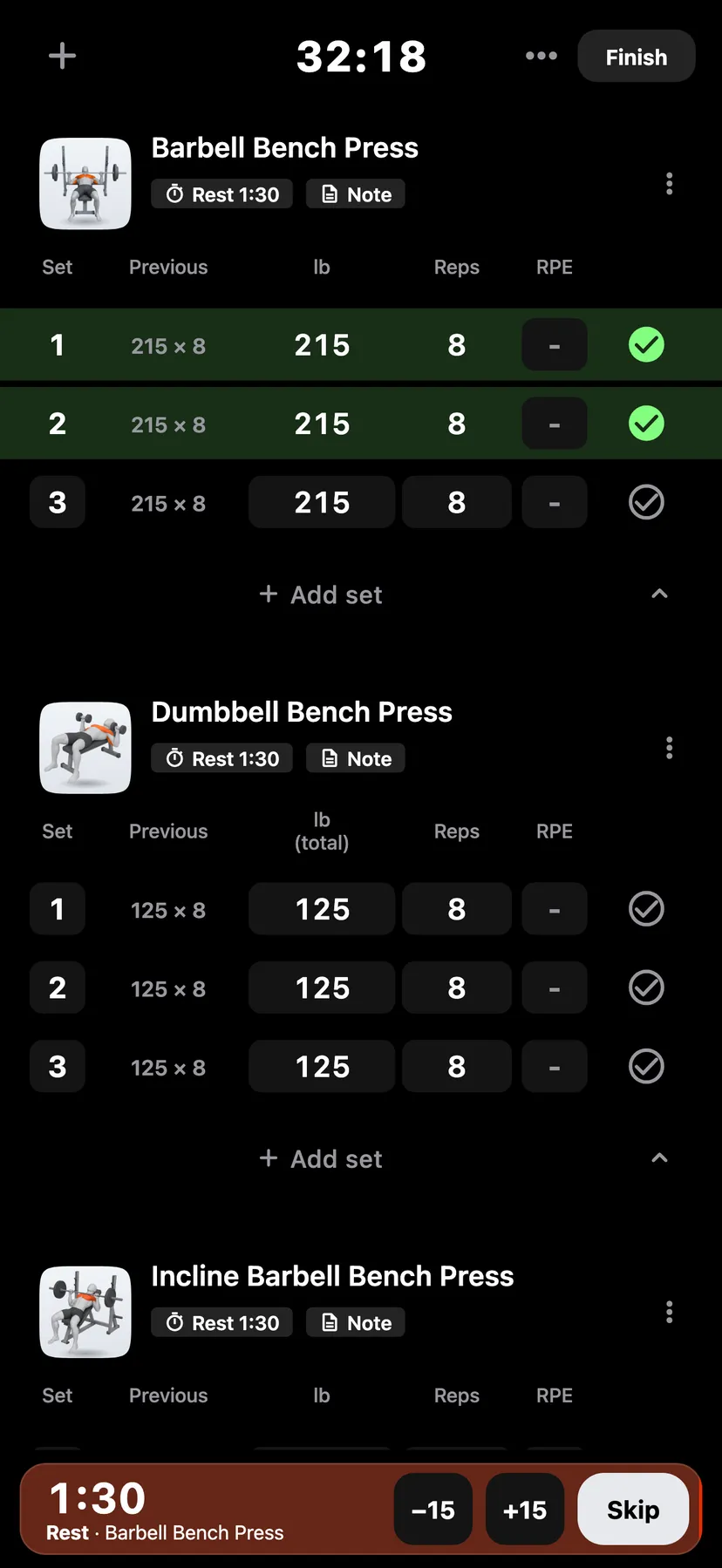
Example data
Rest Timer on the Lock Screen
The rest countdown shows on the Lock Screen and in the Dynamic Island with the set that follows the rest. Your iPhone alerts you when the rest ends.
WhereYouthenTrainingthenWorkout defaults
- 1
Tick a set in a workout. The rest timer starts.
- 2
Lock your iPhone
The countdown shows on the Lock Screen and in the Dynamic Island. It names the set that follows the rest.
- 3
Change or end the rest
Tap −15s or +15s to take off or add 15 seconds, or Skip to end the rest.
- 4
Allow alerts
The first time you come back to Repva while a rest is running, a sheet titled Rest timer alerts opens. Tap Continue, then answer the iOS prompt.
Settings
- Lock Screen timer
- On by default. On You, tap Training, then Workout defaults. The ⋯ button in a workout's header opens a sheet with the same switch.
Details
- The countdown stops at 0:00. It never logs a set.
- Repva asks for notification permission once. If you choose Don't Allow, turn alerts on in iOS Settings, under Notifications, then Repva.
- The rest alert is Time Sensitive, so it can come through a Focus.
- The same countdown shows in the Smart Stack on Apple Watch.
Related features
Checked against the app on November 13, 2026.