
Example data
Import from Hevy and Strong
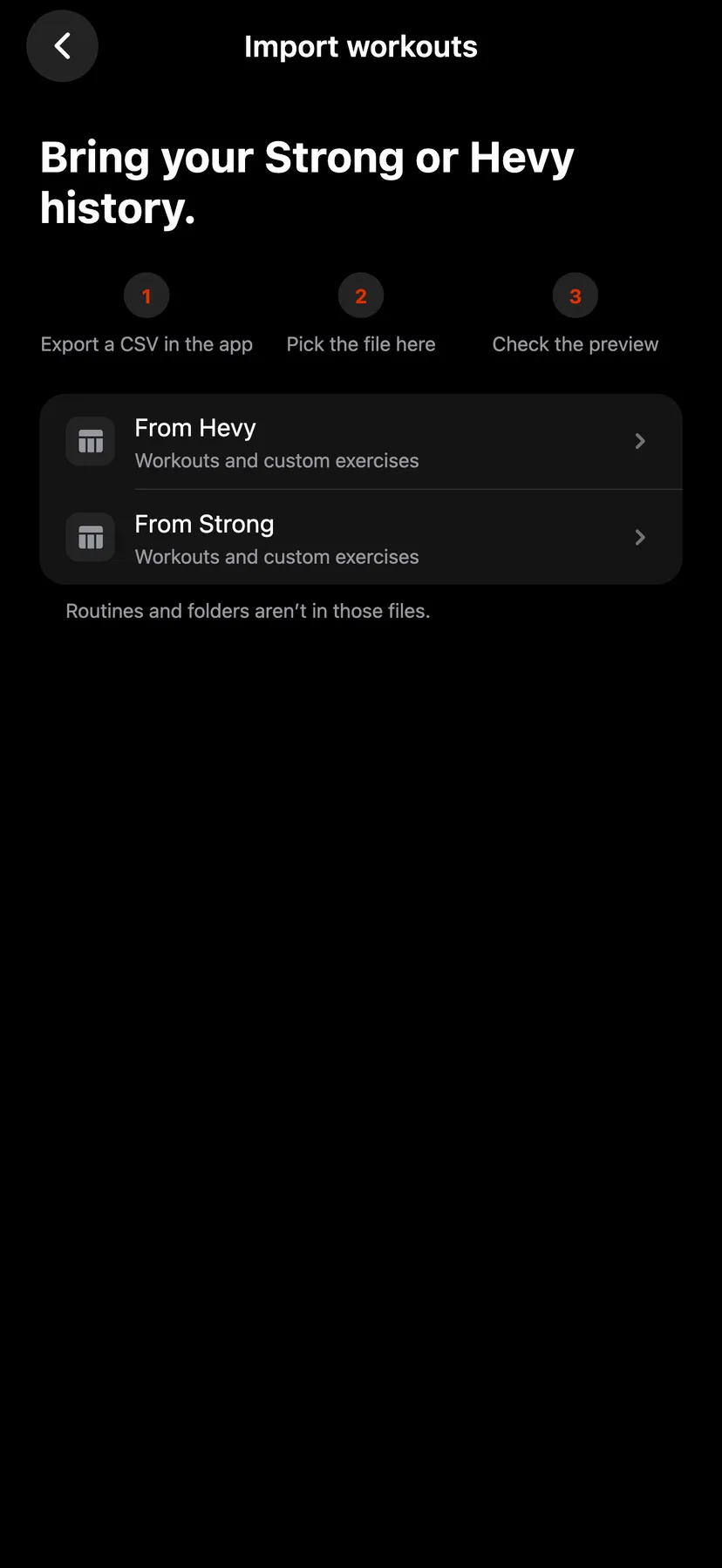
Repva imports your workout history from a Hevy or Strong CSV export. You review a preview and match exercise names before any workout is added.
WhereYouthenDatathenImport workouts
- 1
Export your workout data as a CSV from Hevy or Strong and save it to Files. Use the original export without editing its columns.
- 2
On You, under Settings, tap Data, then Import workouts.
- 3
Tap the row for Hevy or the row for Strong. Tap Choose CSV file and pick the export.
- 4
Check the units and time zone
Hevy files name their units. For a Strong file, choose Weight and Distance, and Total held or Each dumbbell for paired dumbbell weights. Confirm the Workout time zone, then tap Preview history.
- 5
Open Exercise matches. For each name that needs a match, tap Choose Repva exercise or Create custom exercise.
- 6
Tap the button at the bottom, which names the number of workouts. Repva adds no workout before this tap.
Details
- Workouts, sets, set order, supersets and notes are imported. Strong's W, D and F marks become warm-up, drop and failed tags, and Strong's Rest Timer rows are skipped.
- Routines and folders are not imported, and Repva does not keep syncing with either app.
- A name matches only when it is exactly the same as a Repva exercise or a reviewed alias. Every other name needs your choice.
- A malformed file, or one over the size limits, is refused whole. Importing the same file twice skips the workouts already there.
- To undo, open Import workouts on the same iPhone, tap Last import, then Undo this import. Undo removes only workouts that import added and that have not changed since. Custom exercises you created stay.
Related features
Checked against the app on November 13, 2026.