
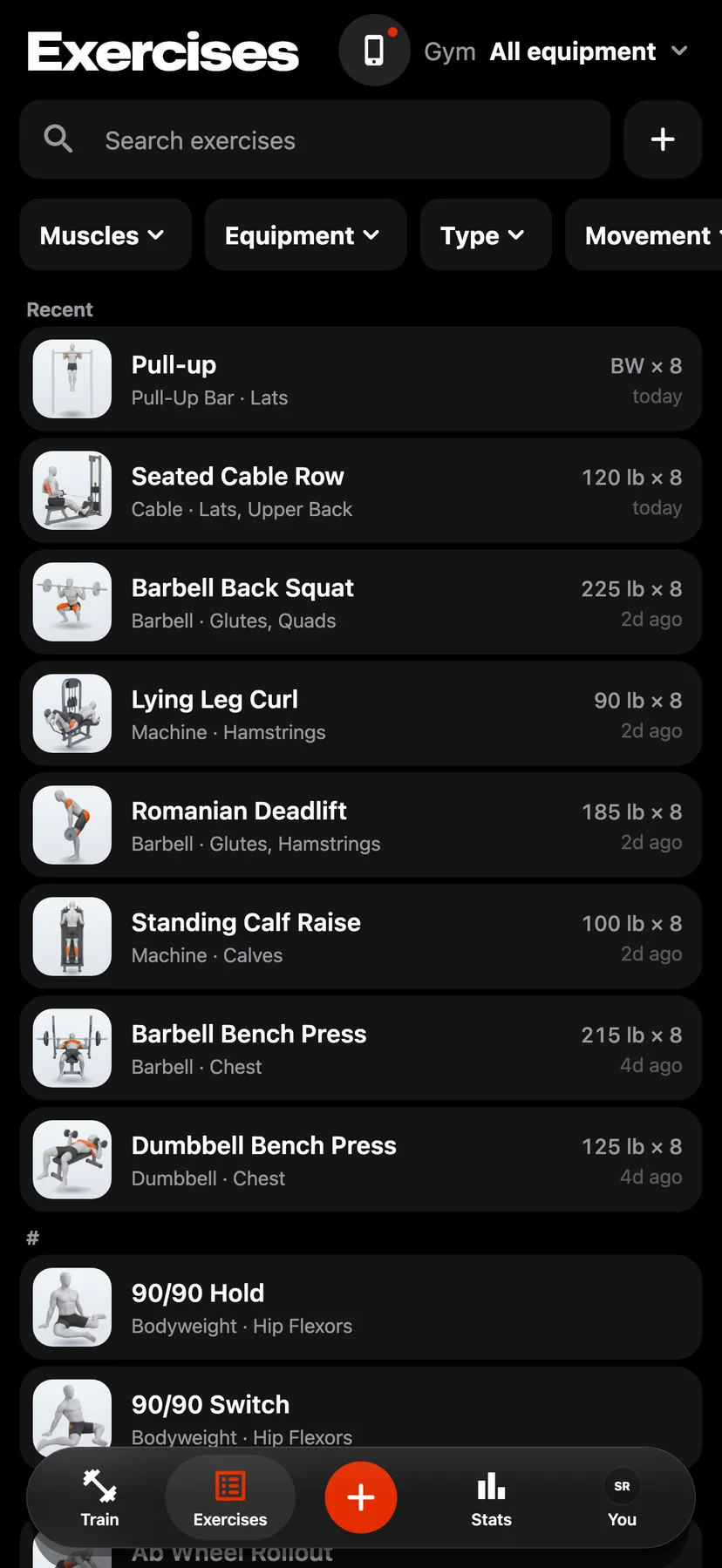
Example data
Custom Exercises
A custom exercise is an exercise you add to the library yourself. The app asks for its name, type, target muscles and equipment one screen at a time, then shows a summary where you can add more.
WhereExercisesthenNew exercise
- 1
On Exercises, tap the + beside the search field. You can also search for a name the library does not have and tap the dashed card at the end of the results, which names the exercise after your search.
- 2
Name the exercise
Type a name and tap Next. Under Copy from a similar exercise, Copy fills in a library exercise's type, muscles and equipment. Once the name has 3 letters, up to 3 similar exercises are listed.
- 3
Choose the type
Pick Strength, Cardio or Mobility, then what a set records under What you log. Strength offers Weight & reps, Bodyweight reps, Weighted bodyweight, Assisted bodyweight, Hold, and Weighted hold or carry. Cardio offers Time, and Time & weight. Mobility offers Reps and Hold. Tapping a choice moves to the next screen.
- 4
Tap at least one muscle under Push, Pull, Legs or Core, then Next. The steps above the screen show your answers so far; tap one to change it.
- 5
Pick the equipment
Tap what the exercise needs, then Next. Bodyweight is the choice for an exercise that needs nothing. Gyms and the Equipment filter use this to decide where the exercise shows.
- 6
Summary lists your four required answers and, under Optional, Secondary muscles, One side at a time, Rest between sets, Photo, and Steps and tips. Tap a row to open it; none of the optional ones has to be filled. Then tap Create exercise.
Details
- Repva has no limit on custom exercises.
- The type and what you log can change until a workout or routine uses the exercise. To change them, open the exercise's page, tap ⋯, choose Edit exercise, then Type. After that the row is locked, because sets and records depend on them.
- Copy from a similar exercise is optional. Copy on a row fills in that exercise's type, muscles and equipment and keeps your name, so Next goes straight to Summary. The row then reads Copied. You can change any answer after.
- When no listed exercise is similar, tap Choose from all exercises. It opens the whole library with its search and filters. The exercise you pick is copied and listed first.
- When the name you type is already a library exercise, a line above the list says so. Use it closes the form and picks the library exercise.
- A name can have up to 200 characters. An exercise can have up to 30 target and 30 secondary muscles, and up to 20 lines each of steps and tips.
- To change a custom exercise, open its page, tap ⋯ and choose Edit exercise. It opens the same summary; tap the row to change, then Save.
- An exercise made before equipment was required shows Not set beside Equipment until you pick one.
- To remove a custom exercise, open its page and tap ⋯. An exercise no workout has used shows Delete, which removes it for good and takes it out of every routine. An exercise a workout has used shows Archive, which hides it from the library, removes its photo and keeps its sets and records in those workouts.
- To see archived exercises, turn on My exercises on Exercises and tap Archived exercises at the end of the list. Restore puts an exercise back in the library.
- During an import from Hevy or Strong, Create custom exercise makes one for a name that does not match.
Related features
Checked against the app on November 15, 2026.