
Example data
Backup and Restore
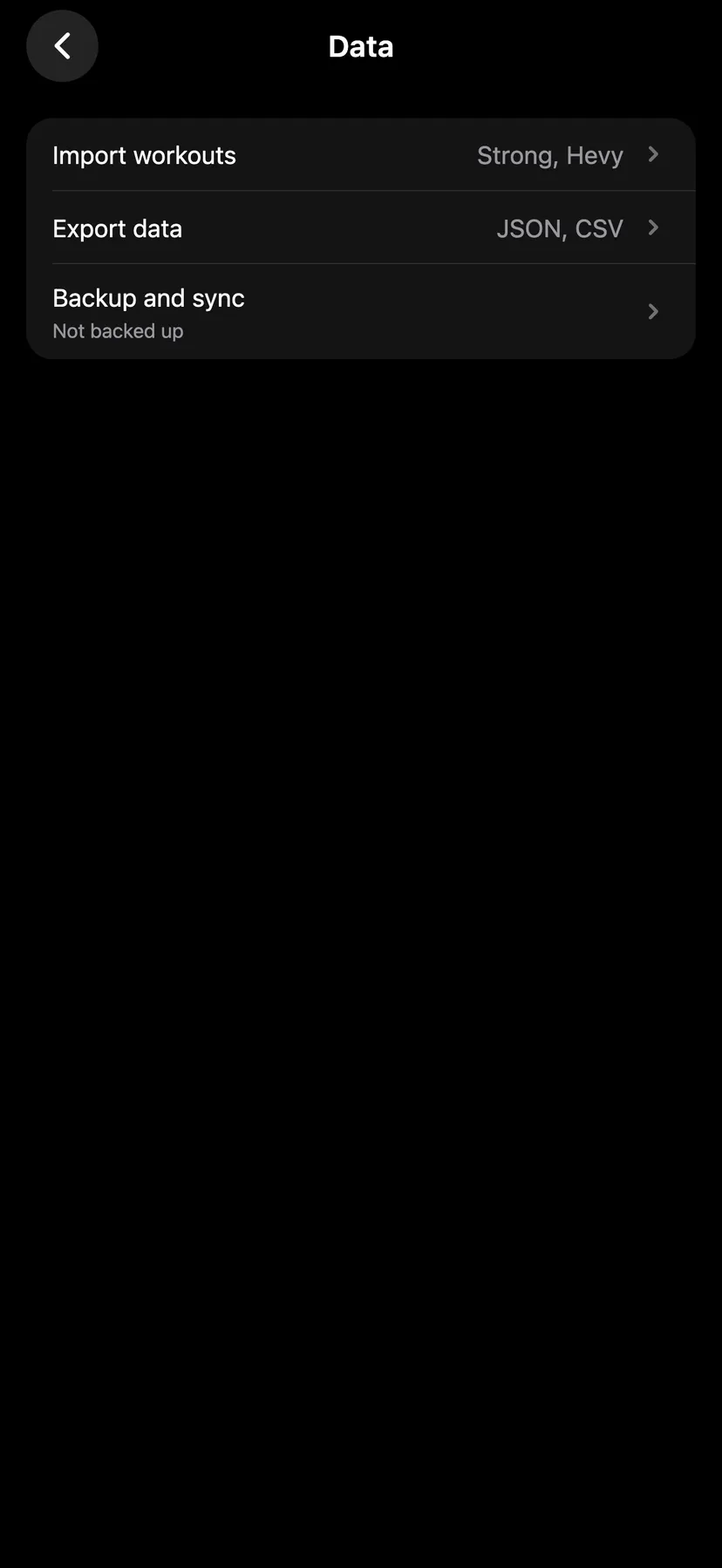
Backup and sync saves your log as one file that you keep, and restores a log from that file on any iPhone. It can also keep a copy in this iPhone's iCloud Backup.
WhereYouthenDatathenBackup and sync
- 1
On You, under Settings, tap Data, then Backup and sync. The row and the page say whether your log is backed up.
- 2
Tap Back up now. The share sheet opens with a file named Repva backup and the date, ending in .repva. Save it to Files or iCloud Drive, or email it.
- 3
Turn on the iCloud Backup switch to keep a copy in this iPhone's backup. It works while iCloud Backup is on in the iPhone Settings app.
- 4
On any iPhone, tap Restore from backup, pick the file and tap Restore. This replaces every workout, routine and setting on that iPhone with the backup.
- 5
Restore on a new iPhone
On an iPhone restored from an iCloud backup that holds the copy, Repva's setup page offers to restore the iPhone backup and names its date. Nothing is restored without that tap.
Settings
- iCloud Backup
- Off until you turn it on. On You, tap Data, then Backup and sync.
Details
- Without an account, your log is only on your iPhone until you make a backup.
- The Backup row on You shows the same status. It opens the Backup sheet, which has Back up now.
- If you have not backed up for 30 days, Repva sends a "Back up your workouts" reminder at 6 PM, as long as you allowed notifications. It sends none while iCloud Backup is on.
- Repva records a backup only when the share sheet reports the file saved.
- The Backup and sync row shows while you use Repva without an account. An account with Repva Pro backs up to the cloud and has no row.
- JSON and CSV exports cannot be restored. Only a backup file can.
Related features
Checked against the app on November 13, 2026.