
Example data
Folders
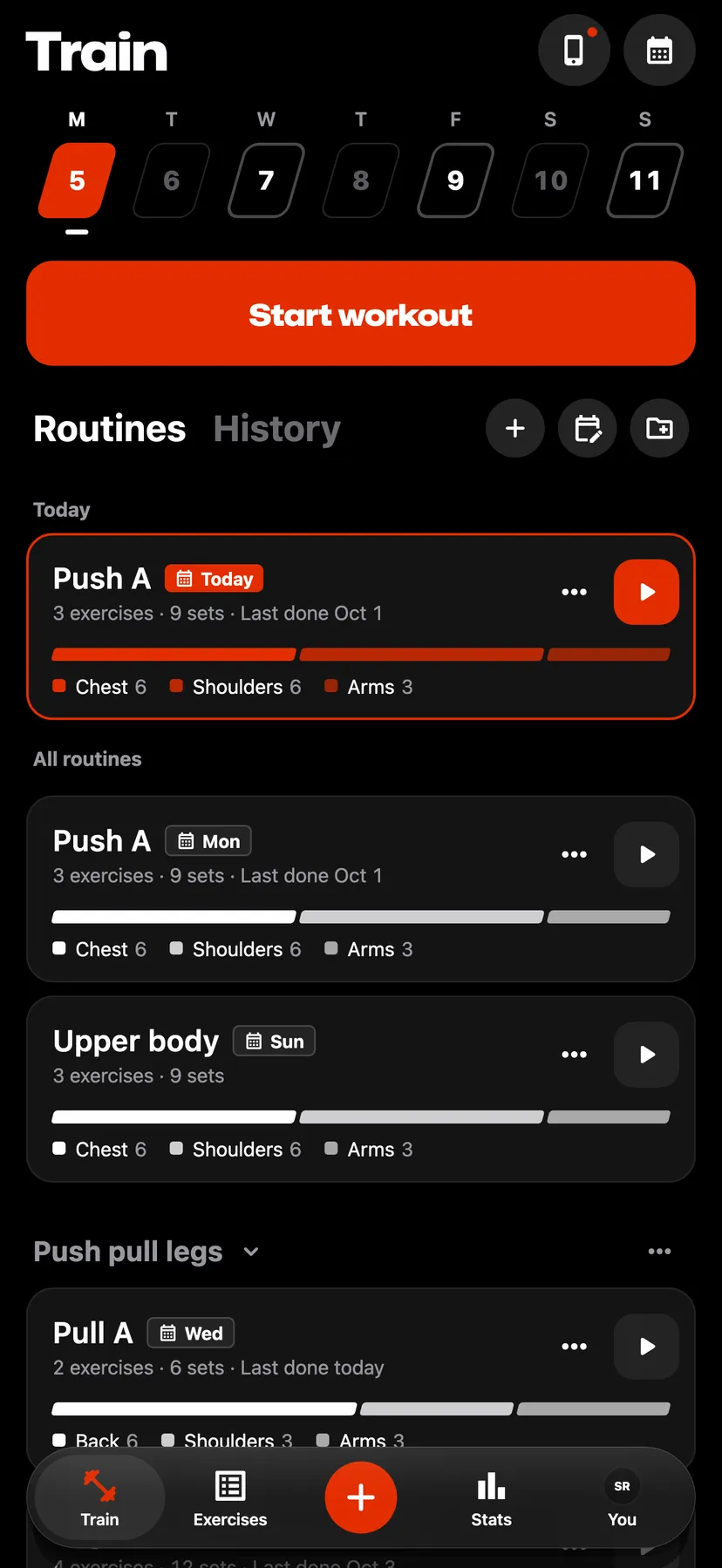
Folders group the routines on Train. You can drag routines and folders into any order.
WhereTrainthenRoutines
- 1
On Train, tap the folder button at the end of the Routines heading. In New folder, type a name in Folder name and tap Save.
- 2
Move a routine into a folder
Hold the routine's card, drag it onto the folder's name and release it when Move here shows beside the name.
- 3
Choose a folder in the routine builder
While creating or editing a routine, tap the folder button in the Routine name field and pick a folder. No folder takes the routine out of its folder, and Create makes a new folder.
- 4
Reorder routines and folders
Hold a routine's card or a folder's name and drag it to its new place.
- 5
Tap a folder's name to show or hide its routines.
- 6
Tap ⋯ beside the folder's name, then Rename or Delete. Deleting a folder moves its routines out of the folder and keeps them.
Details
- A routine without a folder is listed above the folders.
- An empty folder shows an Add routine slot, which creates a routine in that folder.
- Whether each folder is open or closed is remembered on this iPhone.
Related features
Checked against the app on November 13, 2026.