
Example data
Exercise Library
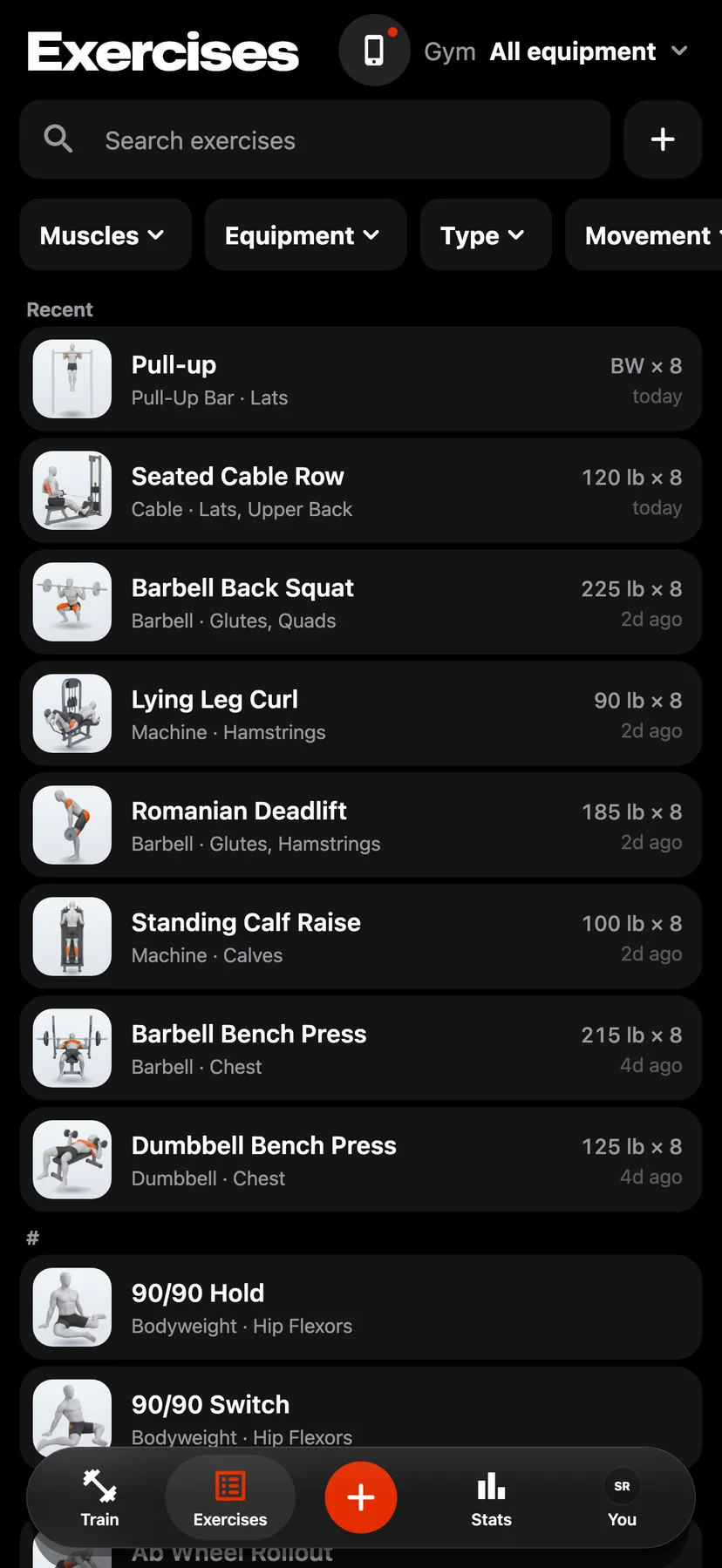
The Exercises tab lists hundreds of exercises. Each one has a page with its picture or animation, the muscles it works, its equipment and how to do it.
WhereExercises
- 1
Tap Exercises in the dock. The list starts with Recent, the 8 exercises you logged last, then Custom if you have made any, then every exercise in alphabetical order.
- 2
Type in Search exercises. The best matches are listed first. A search accepts abbreviations such as ohp and rdl, and joined words such as benchpress. A muscle such as abs also lists the exercises that target it.
- 3
Use the row under the search field: Muscles, Equipment, Type, Movement, Level, Mechanic, Sides and My exercises. Muscles and Equipment open a sheet, and the others apply as soon as you pick. A filter that is on shows its choice and moves to the front of the row.
- 4
Hold the picture on an exercise's card to see its animation with its name and muscles.
- 5
Tap the card. When the exercise has an animation, it plays at the top of the page. Tap the animation to pause or resume it. The exercise's name, target muscles and equipment are under it.
- 6
Tap Technique. It shows Steps, Tips and Muscles, each when the exercise has it. Tap Muscles to see the target and secondary muscles on a body figure.
Settings
- Gym
- All equipment by default, which lists every exercise. Tap the Gym button at the top of Exercises to pick a gym, and the list keeps only the exercises that gym's equipment allows. Gyms are set up from that button or from Gyms on the You tab under Training.
Details
- Most exercises have an animation. An animation downloads the first time it plays, so the first play needs an internet connection.
- With Reduce Motion on, an animation stays on its first frame until you tap it.
- With a gym chosen, a search still lists matching exercises the gym does not have, in a separate section.
- Clear filters shows when filters leave no exercises. It resets the filters and keeps the search text and the gym.
- An exercise's card shows the last set you logged for it.
- On an exercise's page, Alternatives at the foot of Stats lists other exercises marked Easier, Similar or Harder. Tap one to open its page.
Related features
Checked against the app on November 15, 2026.