
Example data
Appearance
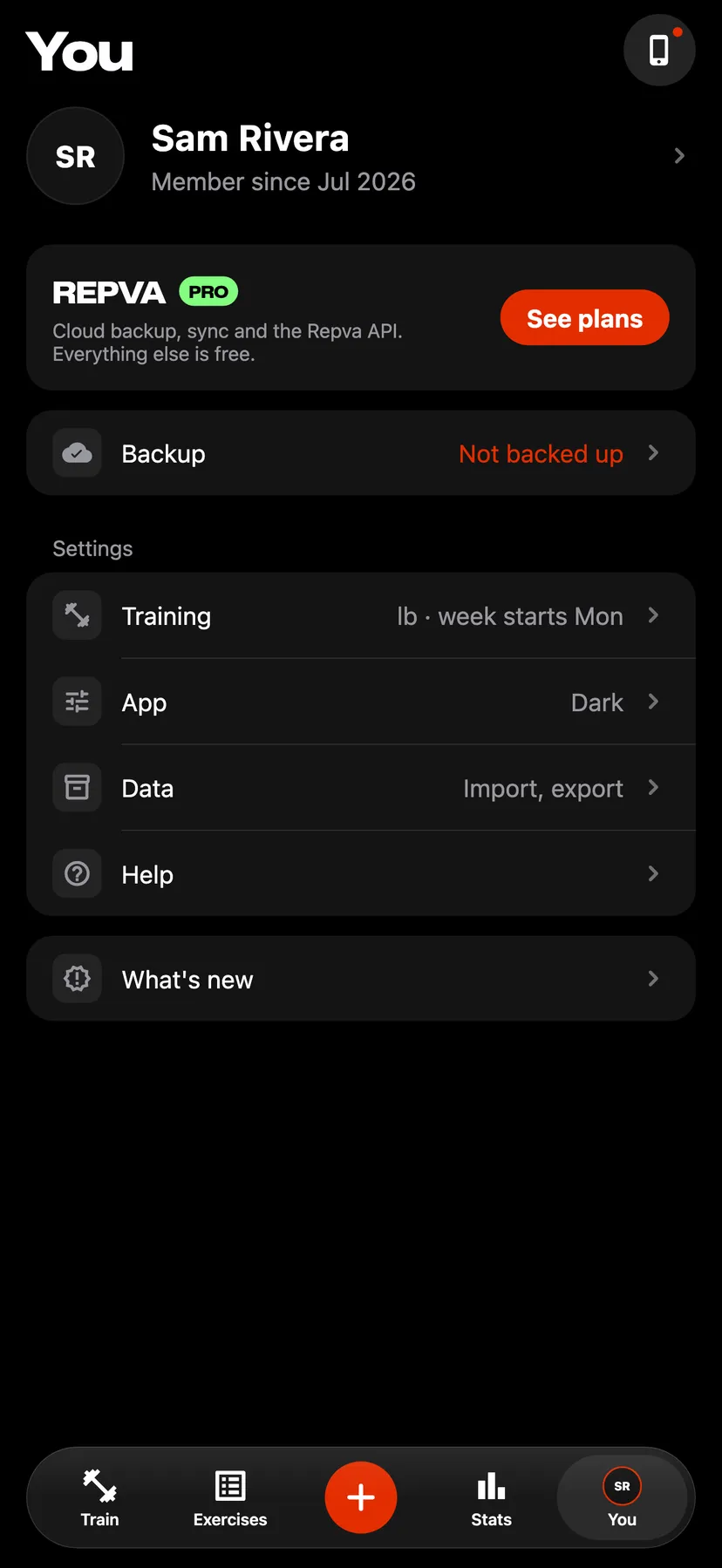
Appearance sets Repva's theme to light or dark, or to follow your iPhone. The same page sets the app icon.
WhereYouthenAppthenAppearance
- 1
On You, under Settings, tap App. The row shows the current theme.
- 2
Tap Appearance.
- 3
Under Theme, tap System, Light or Dark. The theme changes on the tap.
- 4
Choose an app icon
Under App icon, tap Charcoal or White. Your iPhone shows its own alert when the icon changes.
Settings
- Theme
- Dark until you change it. System follows your iPhone's light or dark setting.
- App icon
- Charcoal until you change it.
Related features
Checked against the app on November 13, 2026.